Notifications & Alerts
Stay informed about your account activity, upload status, and system events through our comprehensive notification system.
Delivery Channels
We support multiple channels to ensure you receive critical updates wherever you are:
- Email: Essential account and system alerts sent to your registered email address.
- Push Notifications: Instant alerts sent directly to your mobile device or desktop browser (via PWA).
- Telegram: Receive notifications instantly via our Telegram bot integration (if the user is registered using Telegram).
- Webhooks: Programmatic notification delivery to your own servers for automation.
Notification Matrix
Here is a complete breakdown of supported events and their delivery channels:
| Event Type | Push | Telegram | Description | |
|---|---|---|---|---|
| New Login Alert | ✅ | ✅ | ✅ | Triggered when your account is accessed from a new device or location. |
| Upload Failed | ✅ | ✅ | ✅ | Triggered when a video fails to publish to TikTok, YouTube, etc. |
| Subscription Expired | ✅ | ✅ | ✅ | Triggered when your current plan is about to expire or has expired. |
| Account Disconnected | ✅ | ✅ | ✅ | Triggered when a social media account token expires and needs reconnection. |
| Refresh Failed | ✅ | ✅ | ✅ | Triggered when we fail to automatically refresh a social account session. |
| Suggestion Updated | ✅ | ✅ | ✅ | Triggered when there is an update to a feature suggestion you voted on. |
| Webhook Disabled | ✅ | ✅ | ✅ | Triggered if your webhook endpoint fails too many times. |
Setting Up Push Notifications
For the best experience, we recommend installing our application as a PWA (Progressive Web App). This allows you to receive native-like push notifications directly on your phone, even when the app is closed.
Example of notification on iOS

🍎 iOS (iPhone/iPad)
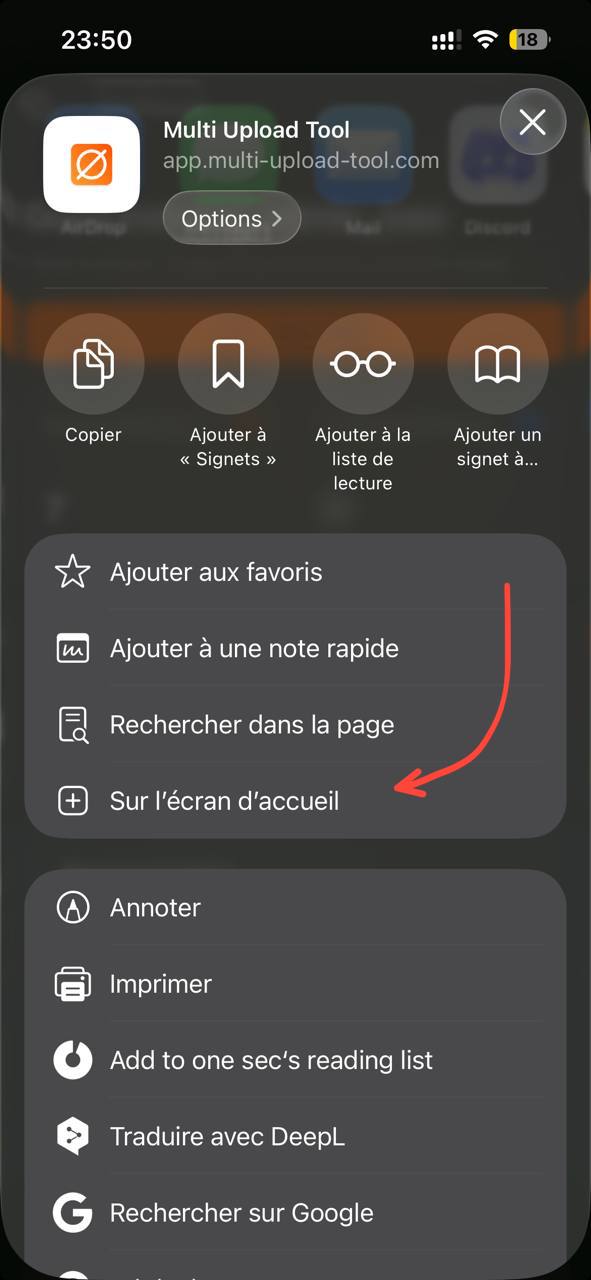
On iOS, push notifications require the app to be added to your Home Screen first.
- Open our dashboard in Safari. (https://app.multi-upload-tool.com/ )
- Tap the Share button (the square with an arrow pointing up) at the bottom of the screen.
- Scroll down and tap Add to Home Screen.
- Tap Add in the top right corner.
- Close Safari and find the new app icon on your device’s home screen.
- Open the app from the home screen.
- Navigate to Settings.
- Enable the Push Notifications toggle.
- When prompted, tap Allow to grant notification permissions.
🤖 Android (Chrome)
- Open our dashboard in Chrome. (https://app.multi-upload-tool.com/ )
- Tap the three-dot menu icon in the top right corner.
- Tap Install App or Add to Home screen.
- Follow the prompts to install.
- Open the installed app from your app drawer or home screen.
- Navigate to Settings.
- Toggle Push Notifications on to enable alerts.
(Screenshot placeholders)
🖥️ Desktop (Chrome/Edge/Safari)
You can also receive notifications on your computer while you are working.
- Log in to your dashboard. (https://app.multi-upload-tool.com/ )
- Navigate to Settings.
- Click the toggle next to Push Notifications.
- When your browser asks for permission, click Allow.
Managing Preferences
You can customize exactly which notifications you receive and on which channels.
- Go to the Settings page.
- Scroll down to the Notifications section.
- Use the checkboxes to enable or disable specific channels (Email, Push) for each event type.
- Changes are saved automatically.
Brave browser users: You must enable notifications in Brave settings (brave://settings/content/notifications) for push notifications to work correctly.