N8N Integration
This guide explains how to integrate Multi Upload Tool with n8n to automate your social media workflows.
Community Node (Recommended)
The easiest way to use Multi Upload Tool in n8n is via the official community node, which provides a native n8n integration with no code required.
Install
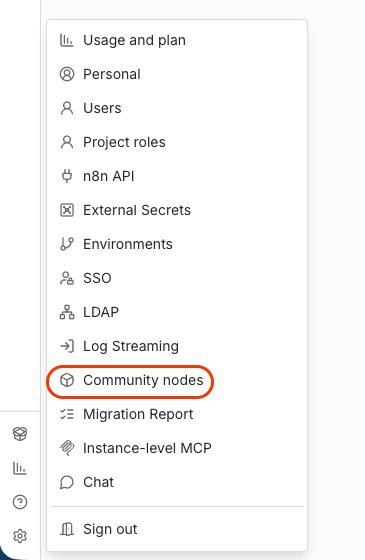
In your n8n instance, go to Settings → Community nodes and install:
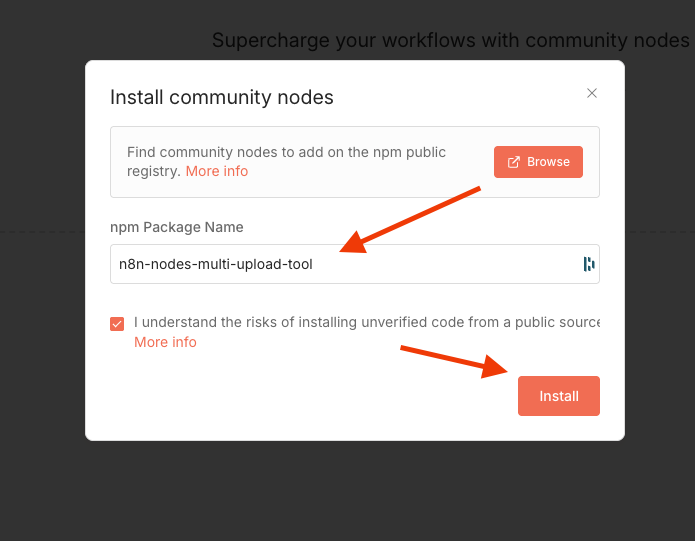
n8n-nodes-multi-upload-toolAvailable Resources & Operations
| Resource | Operations |
|---|---|
| Upload | Create, Bulk Create, Get, Get Many, Update |
| Account | Get, Get Many, Delete, Get LinkedIn Pages |
| Get Boards | |
| Short Link | Create, Get, Get Many, Update, Delete |
| Webhook | Create, Get Many, Delete, Test |
Authentication
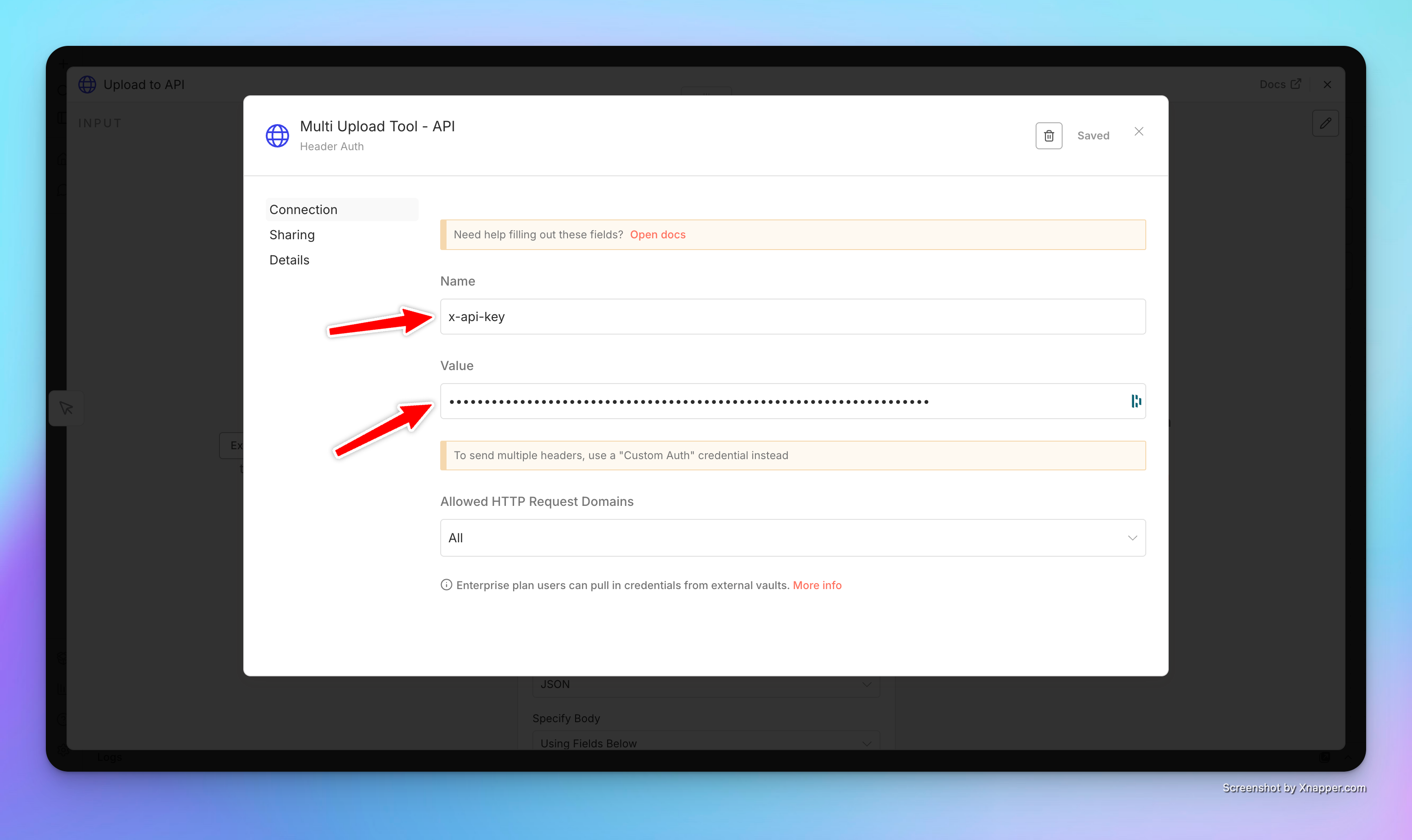
Create a Multi Upload Tool API credential in n8n with your API token (found in Settings → API Keys in your dashboard). The token is sent as an x-api-key header.
HTTP Request Node (Advanced)
If you prefer to use the generic HTTP Request node instead of the community node, follow the instructions below.
Prerequisites
- Your API Token (
x-api-keyheader). - The
accountIdof the destination account (use the List Accounts endpoint or find it in Manage Users ). - A binary file in your n8n workflow (e.g., from a “Read Binary File” node or an HTTP download).
Node Configuration
- Method:
POST - URL:
https://api.multi-upload-tool.com/api/v1/upload - Authentication: Select Generic Credential Type → Header Auth.
- Create a credential with Name:
x-api-keyand Value:YOUR_API_TOKEN.
- Create a credential with Name:
- Body Content Type:
Multipart-form-data. - Send Binary Data: Toggle to
true.- Input Binary Field:
data(or the name of your binary property). - Form Field Name:
videofor videos,photofor images.
- Input Binary Field:
- Body Parameters:
accountId: Your connected account ID (platform is detected automatically).title: The title of your post.description: (Optional) The description/caption.schedule_date: (Optional) ISO 8601 date for scheduling.
Common Issues
- File Size: Ensure your n8n instance allows the file size you are trying to upload.
- Timeout: Large files might take time to upload. Increase the timeout in the HTTP Request node settings if necessary.
- Binary Property: Make sure the “Input Binary Field” matches the property name where the file is stored in the previous node (default is usually
data).